Managing Your Inventory
Track products, add new stock, and sell items at checkout — all without leaving Nuvoro.
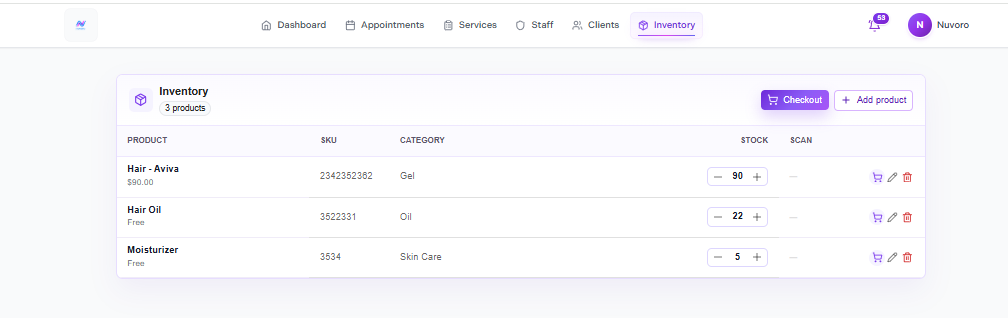
The Inventory overview
Inventory Overview
The Inventory page shows all your products in a table with their name, price, quantity in stock, and status. You can sort by any column and use the search bar to find a specific product quickly.
| Column | What it shows |
|---|---|
| Product name | The name you gave the product when it was added. |
| Price | Retail price charged at checkout. |
| Quantity | Current stock count. Updates automatically when sold. |
| Status | Active (available to sell) or Inactive (hidden from checkout). |
Adding a Product
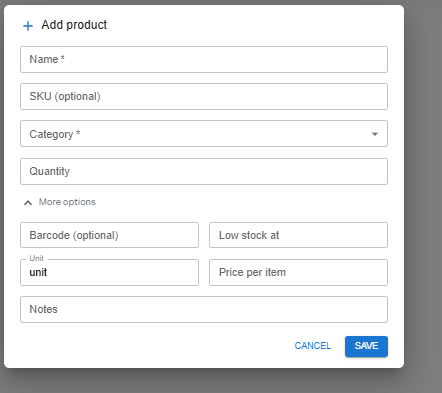
The Add product form
Click + Add Product
The product form opens.
Enter the product name and price
Name is what staff and clients see at checkout. Price is the retail amount charged.
Set the starting quantity
Enter how many units you currently have in stock. This number decrements each time the product is sold at checkout.
Add a description (optional)
Internal notes for staff — not shown to clients.
Save the product
The product is now available to add at appointment checkout.
Checking Out a Product
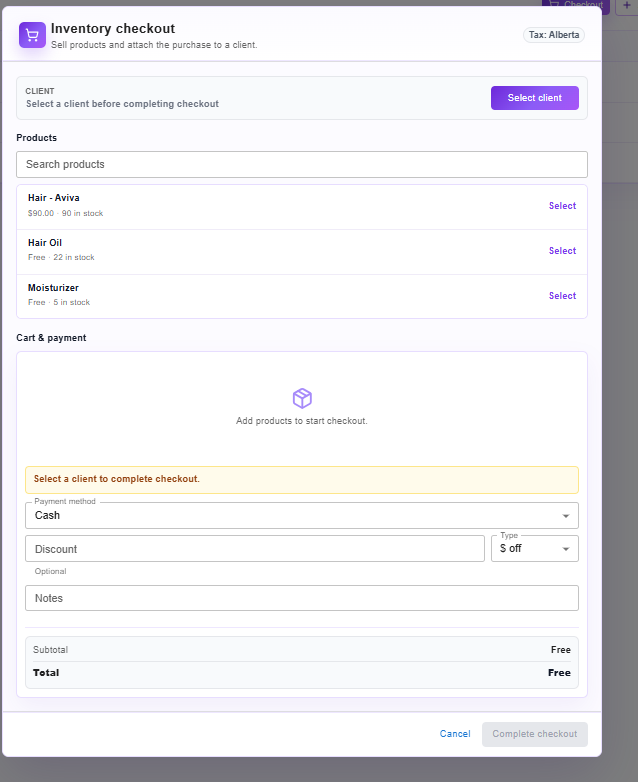
Adding a product during appointment checkout
Products can be sold alongside a service during the appointment checkout flow. When you check out an appointment, you'll see an option to add products to the transaction.
Open the Checkout screen for an appointment
From the appointment actions menu, select Checkout.
Click + Add product
A product picker appears. Search for or scroll to the item the client is purchasing.
Set the quantity and confirm
The product price is added to the total. Inventory count decrements automatically when payment is collected.
Stock Levels & Alerts
Nuvoro tracks stock levels in real time. Products with low or zero stock are highlighted on the Inventory page. To restock a product, open it and update the quantity field.
Product won't appear at checkout if out of stock
When a product's quantity reaches zero, it is automatically removed from the checkout picker until you restock it. Make sure to update quantities after receiving new shipments.