Payroll & Dashboard
Understand your dashboard stats, review recent and upcoming appointments, and use the Staff Payroll Report to filter earnings by date and staff member.
In this article
Understanding Your Dashboard Stats
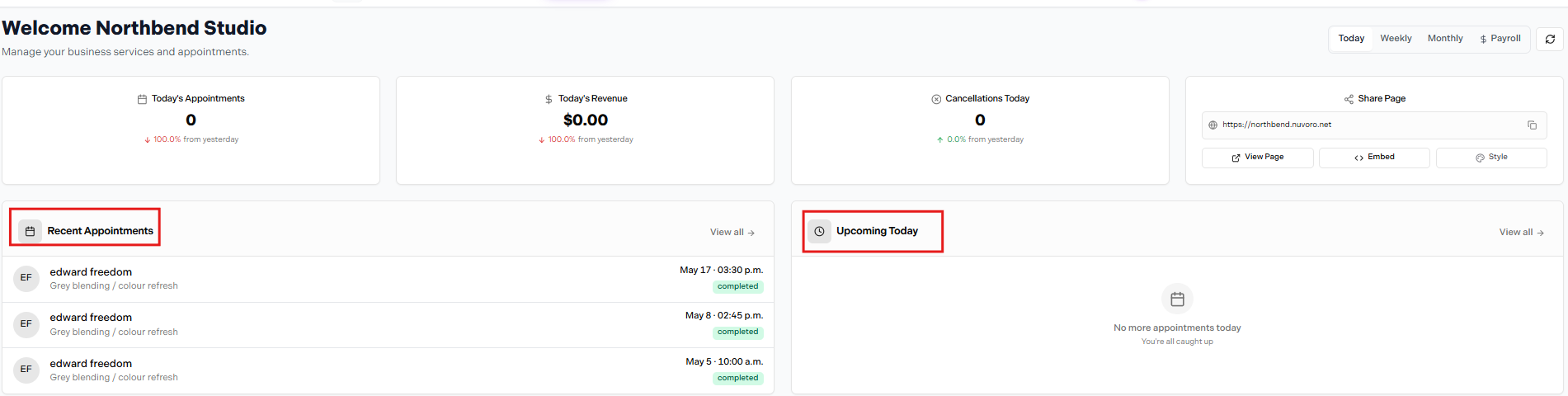
Dashboard — stat tiles, Recent Appointments, and Upcoming Today
The top of the Dashboard shows three stat tiles for the current view period (Today / Weekly / Monthly, toggled top-right):
| Tile | What it shows |
|---|---|
| Today's Appointments | Total appointments for the period with a % change vs. the previous period. |
| Today's Revenue | Revenue collected in the period with a % change vs. the previous period. |
| Cancellations Today | Number of cancelled appointments in the period with a % change vs. the previous period. |
A fourth tile — Share Page — shows your public booking page URL with View Page, Embed, and Style shortcuts.
Recent Appointments & Upcoming Today
Below the stat tiles, the dashboard shows two panels side by side:
| Panel | What it shows |
|---|---|
| Recent Appointments | Your most recently completed appointments — client name, service, date, and status badge (e.g. completed). Click View all → to see the full list. |
| Upcoming Today | Appointments booked for the rest of today. Shows No more appointments today — You're all caught up when there are none remaining. Click View all → to open the full calendar. |
Staff Payroll Report
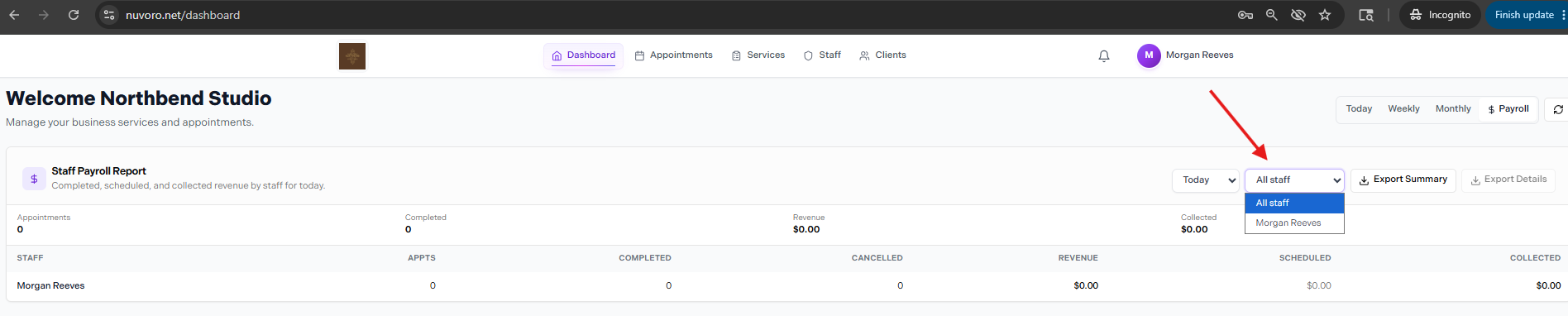
Staff Payroll Report on the Dashboard — date filter, staff filter, and export buttons
The Staff Payroll Report is accessible from the Dashboard. The subtitle reads: Completed, scheduled, and collected revenue by staff for today.
The report summary row shows four totals across all staff:
| Column | What it shows |
|---|---|
| Appointments | Total appointments in the selected period. |
| Completed | Appointments marked as completed. |
| Revenue | Total service revenue across all staff. |
| Collected | Revenue that has been collected/checked out. |
The staff breakdown table below the summary has columns: Staff, Appts, Completed, Cancelled, Revenue, Scheduled, Collected — one row per staff member.
Filtering by Date and Staff
Two filters sit at the top-right of the Staff Payroll Report:
| Filter | Options |
|---|---|
| Date | Dropdown to pick the time period — e.g. Today. Use the Today / Weekly / Monthly tabs at the top-right of the dashboard to change the view. |
| Staff | Dropdown showing All staff or individual team members. Select a specific staff member to see only their data. |
Exporting Payroll Data
Next to the staff filter are two export buttons:
| Button | What it downloads |
|---|---|
| Export Summary | A high-level summary — one row per staff member with their totals for the selected period. |
| Export Details | A full line-by-line breakdown — one row per appointment, including service name, date, client, revenue, and collected amount. |
Filter before exporting
Set your date range and staff filter first, then export — the download will only include data matching your current filter selection.