Subscription & Plans
View your current plan, upgrade or switch, add optional add-ons, and manage your billing details — all from the Subscription page.
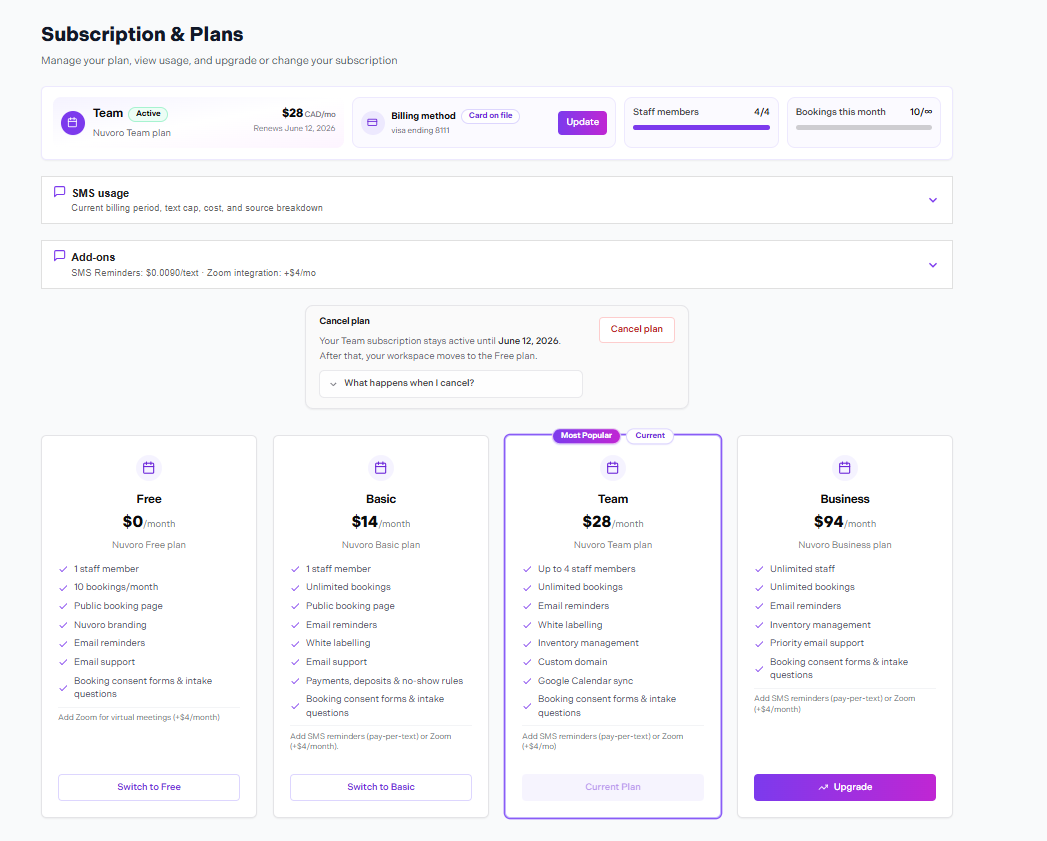
Settings → Subscription
In this article
Your Current Plan
The top of the Subscription page shows your active plan, the billing cycle (monthly or annual), the next renewal date, and the current monthly or annual cost. You can see a full breakdown of what's included in your plan directly on this page.
Upgrading or Switching Plans
Review the available plans
Plans are displayed side by side with their features and pricing. Compare what's included in each.
Click Upgrade or Switch plan
A confirmation dialog shows the new cost and when the change takes effect.
Confirm the change
Upgrades take effect immediately. Downgrades take effect at the end of your current billing period.
Prorated billing
When you upgrade mid-cycle, you're only charged the difference for the remaining days in the billing period. The full new plan price applies starting your next renewal date.
Add-ons
Add-ons are optional features you can bolt onto any plan for an additional monthly cost. They appear in a separate section on the Subscription page. Toggle any add-on on or off — changes take effect immediately and are prorated on your next invoice.
Add-ons are billed monthly
Even if you're on an annual plan, active add-ons are billed monthly on top of your annual subscription. Turning off an add-on stops the charge at the next monthly cycle.
Billing & Payment Method
Your payment method is stored securely. To update the card on file:
Scroll to the Payment method section
Your current card is shown with the last 4 digits and expiry date.
Click Update card
Enter your new card details. The old card is replaced immediately.
Failed payments
If a payment fails, Nuvoro will retry automatically. After multiple failed attempts, your account may be restricted until payment is resolved. Update your card before the next billing date to avoid interruptions.