Booking Rules & Payment Settings
Configure cancellation fees, consent forms, intake questions, checkout tax, payment requirements, no-show fees, and booking restrictions — all from one place.
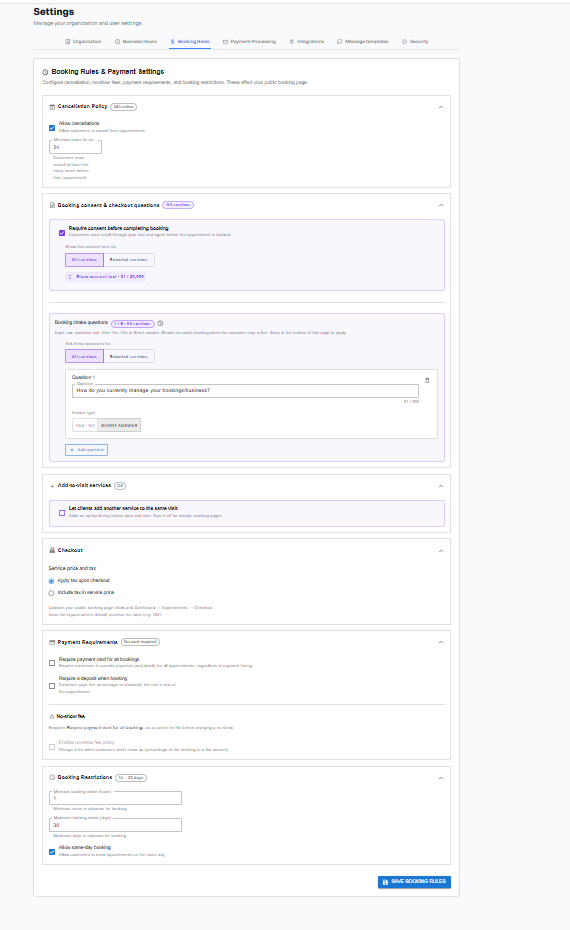
Settings → Booking Rules
In this article
Cancellation Policy
Controls whether clients can cancel their own bookings and how much notice they must give.
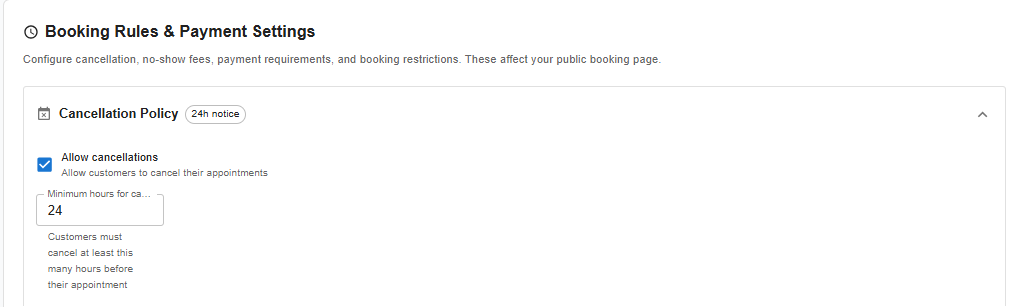
Allow cancellations toggle
When enabled, clients can cancel their own appointments from the booking confirmation email. When off, they must contact you directly.
Minimum notice (hours)
Set how many hours before an appointment a client must cancel. For example, setting 24 means clients cannot cancel within 24 hours of their appointment — only you can cancel it at that point.
Pair with a no-show fee
Use cancellation minimum notice together with the no-show fee policy to protect your revenue. Clients who can't cancel within the window and don't show can be charged automatically.
Booking Consent & Intake Questions
Collect agreement and information from clients before they complete their booking.
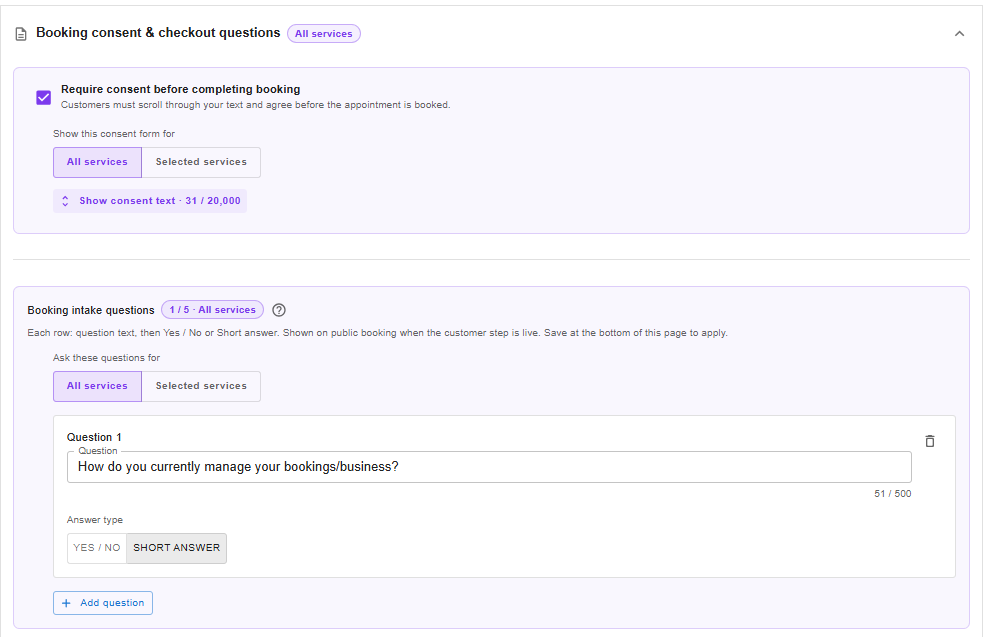
Consent statement
Enable Require consent before completing booking to show a checkbox that clients must tick before their booking is confirmed. Write your terms, policy, or waiver text in the field provided. You can apply this to All services or only Selected services.
Intake questions
Add custom questions clients answer when they book. Use these to collect intake information, preferences, or anything else you need before the appointment.
Answer types: Yes / No (checkbox) or Short Answer (text field)
Scope: Apply questions to All services or only Selected services
Adding questions: Click + Add question, type your question, and choose the answer type
Example: "How do you currently manage your bookings/business?" with a Short Answer field
Add-on Visit Services

Enable Let clients add another service to the same visit to allow clients to select a secondary service when booking. The add-on service is appended to the same appointment slot, so both are handled in one visit rather than requiring a separate booking.
Checkout Tax
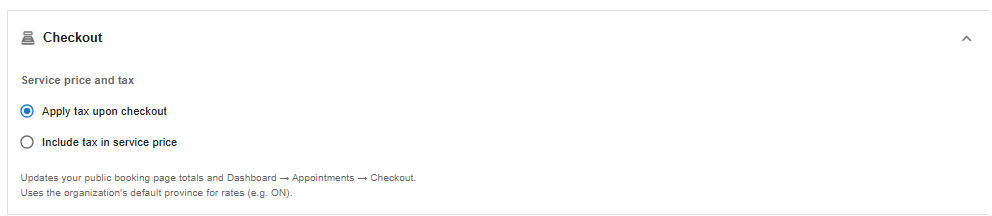
Choose how tax is applied to services at checkout. The tax rate is determined automatically by your province set in Organization settings — this controls how it's shown to clients.
| Option | What it means |
|---|---|
| Apply tax upon checkout | Tax is added on top of the listed service price at payment. Client sees the base price + tax breakdown at checkout. |
| Include tax in service price | The price you set already includes tax. Clients see one all-in price with no separate tax line. |
Where does the tax rate come from?
Go to Settings → Organization → Business Address and make sure your Province / Territory is correct. Nuvoro uses that to set the GST/HST/PST rate automatically. Alberta = GST only (5%). Ontario = HST (13%).
Payment Requirements & Deposits
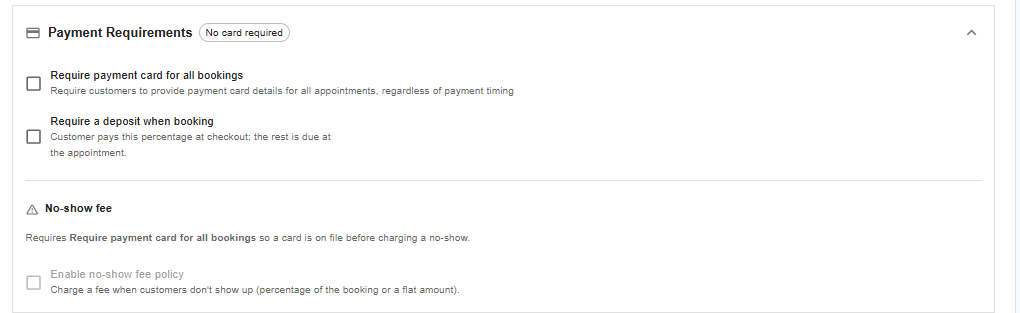
Require payment card for all bookings
When enabled, clients must provide card details to complete a booking — even if payment isn't collected upfront. The card is saved on file and can be charged at the time of the appointment or if a no-show fee applies. Requires Stripe or Square to be connected.
Require a deposit when booking
Charge a percentage of the service total upfront when a client books. The remaining balance is collected at the appointment. Set the deposit percentage in the field provided.
Deposits require a payment processor
To collect deposits, you must have Stripe or Square connected under Settings → Payment Processing.
No-show Fee
Automatically charge clients who don't show up for their appointment. This section is only available when Require payment card for all bookings is enabled — you need a card on file to charge a no-show fee.
Enable no-show fee policy: Toggle on to activate the feature.
Fee amount: Set as a percentage of the booking value or a flat dollar amount.
When it's charged: When you mark an appointment as a no-show in the dashboard, Nuvoro automatically charges the saved card.
Booking Restrictions
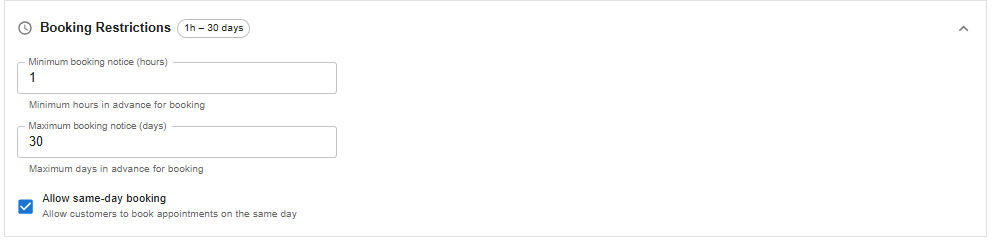
Control how far in advance clients can book and whether same-day bookings are allowed.
| Setting | What it does |
|---|---|
| Minimum booking notice (hours) | Clients must book at least this many hours in advance. Prevents last-minute online bookings. Leave blank for no minimum. |
| Maximum booking notice (days) | How far into the future clients can book. Default is 30 days. Increase this to open up your calendar further in advance. |
| Allow same-day booking | When on, clients can book appointments for today. When off, the earliest available slot is tomorrow. |
Don't forget to save
Click Save Booking Rules at the bottom of the page to apply all changes. Each section does not save independently.