Setting Your Business Hours
Control when clients can book appointments by setting your open days and hours for each day of the week.
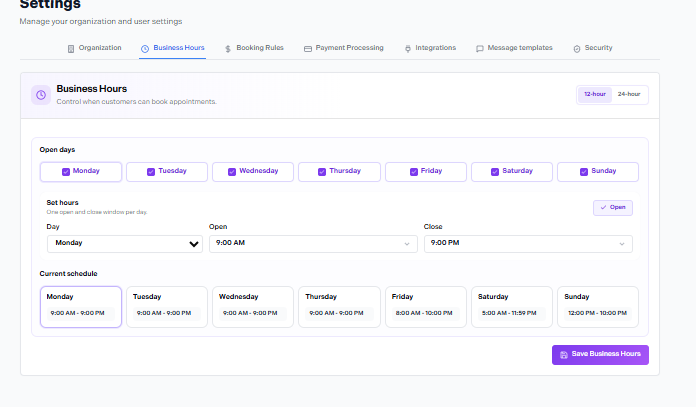
Settings → Business Hours
In this article
Toggling Open Days
At the top of the Business Hours tab you'll see a button for each day of the week — Monday through Sunday. Days shown in purple are open; days in grey are closed.
Click a day to toggle it on or off
Turning a day off means clients cannot book any appointments on that day, regardless of staff availability.
All 7 days can be open
If your business operates 7 days a week, toggle all seven on and set different hours for each day as needed.
Setting Hours Per Day
Each day has a single open and close window. To change a day's hours:
Select the day from the Day dropdown
Use the dropdown under Set hours to choose which day you want to edit.
Set the Open and Close times
Use the Open and Close dropdowns to set the time window. For example: Open 9:00 AM, Close 9:00 PM.
Repeat for each day
Each day can have completely different hours. Switch to the next day in the dropdown and set its open/close times.
Click Save Business Hours
Your changes won't take effect until you save. The purple Save Business Hours button is in the bottom-right corner.
One window per day
Business Hours supports one open-to-close window per day. If you need a lunch break or split shift, use staff availability settings instead — those override business hours for individual providers.
12-Hour vs 24-Hour Format
A toggle in the top-right corner of the Business Hours tab switches between 12-hour (AM/PM) and 24-hour (military time) display. This affects how times appear in the dashboard — it does not change the actual hours set.
Reading the Current Schedule
Below the Set hours section you'll see a Current schedule panel showing all 7 days side by side with their open and close times. This is a read-only summary — use the Set hours controls above to make changes.
| Day | Example Hours |
|---|---|
| Monday | 9:00 AM – 9:00 PM |
| Tuesday | 9:00 AM – 9:00 PM |
| Wednesday | 9:00 AM – 9:00 PM |
| Thursday | 9:00 AM – 9:00 PM |
| Friday | 8:00 AM – 10:00 PM |
| Saturday | 5:00 AM – 11:59 PM |
| Sunday | 12:00 PM – 10:00 PM |
Example schedule from the Nuvoro dashboard.