Organization Settings
Set up your business name, contact details, address, timezone, currency, and logo — the foundation every other part of Nuvoro builds on.
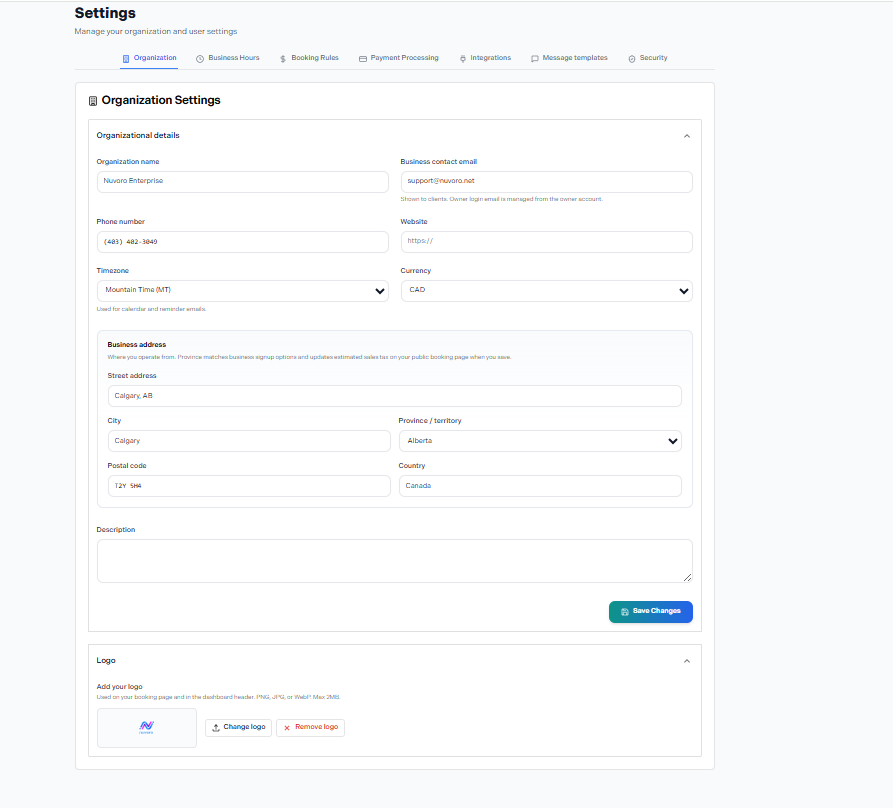
Settings → Organization
In this article
Organizational Details
These are the core details that appear on your public booking page and in client-facing emails. Keep them accurate and up to date.
Organization name
This is your business name as it appears to clients on your booking page and in all automated emails.
Business contact email
Shown to clients on your booking page as your contact address. Note: your login email is separate and managed from your owner account — changing this field does not change your login.
Phone number & Website
Optional fields that appear on your public booking page. Add your website URL including https://.
Timezone
Used for your calendar and all automated reminder emails. Set this to the timezone your business operates in, not the client's timezone.
Currency
Sets the currency displayed on your booking page and invoices (e.g. CAD). This is separate from your payment processor currency — make sure they match.
Business Address & Tax
Your business address tells Nuvoro where you operate. The most important field here is Province / Territory — it directly controls the tax rate applied at checkout.
Province determines your checkout tax rate
When you save your address, Nuvoro reads your province and automatically sets the correct GST/HST/PST rate on your public booking page. If clients are being charged the wrong tax — check this field first.
Street address, City, Postal code, Country — Fill in your full address. This appears on your booking page and may be used for invoicing.
Province / Territory — Select from the dropdown. Examples: Alberta (AB) applies GST only; Ontario (ON) applies HST. Changing this and clicking Save Changes will immediately update checkout tax on your booking page.
Description
An optional field for a short paragraph about your business. This can appear on your public booking page to give first-time visitors context about what you offer. Keep it concise — two to three sentences is ideal.
Logo
Your logo appears in two places: the dashboard header (what you and your staff see when logged in) and your public booking page (what clients see).
Supported formats: PNG, JPG, or WebP
Maximum file size: 2MB
To update: Click Change logo to upload a new file, or Remove logo to go back to the default Nuvoro icon.
Tip — use a transparent background
A PNG with a transparent background looks best on both the white dashboard header and any coloured booking page themes. Avoid logos with a white bounding box.
Remember to save
Click Save Changes at the bottom of the Organizational details section after making any updates. Logo changes save immediately when you upload.