Communication Settings
Control which automated messages are sent to clients, how reminders are timed, and whether SMS is enabled alongside email.
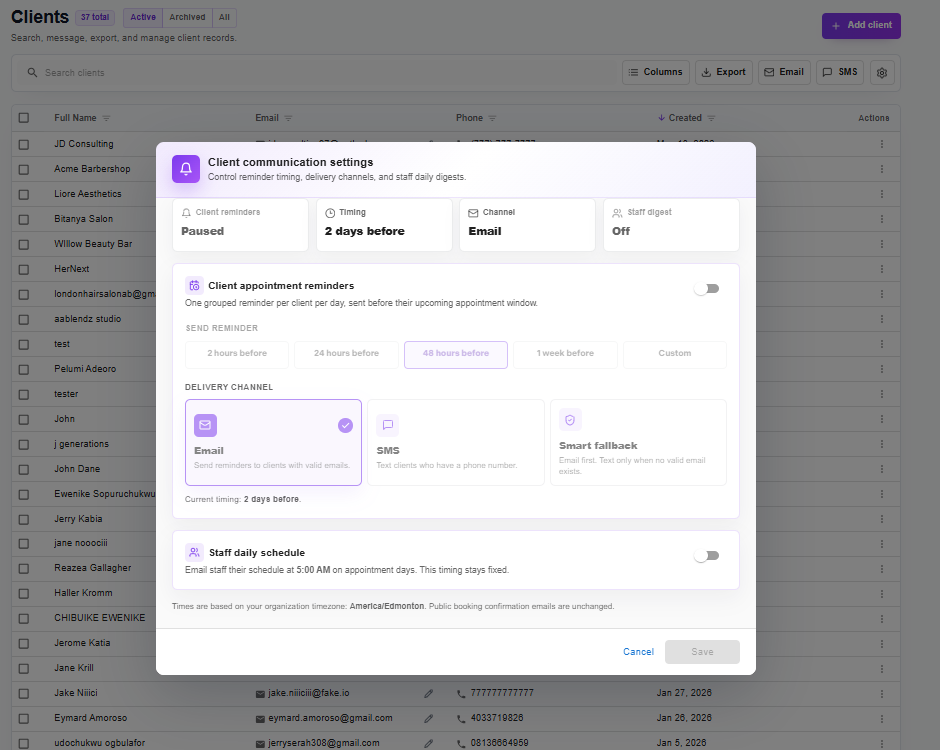
Client communication settings
In this article
Email vs SMS
Nuvoro can send automated messages to clients via email, SMS, or both. Email is always available. SMS requires a connected messaging provider and may have per-message costs depending on your plan.
| Channel | Requirements | Best for |
|---|---|---|
| Client must have an email on file. No extra setup needed. | Confirmations, detailed reminders, cancellations. | |
| SMS | Client must have a phone number. SMS provider must be configured. | Short reminders — higher open rates than email. |
Reminder Timing
You can configure when appointment reminders are sent relative to the appointment start time. For example, send a reminder 24 hours before and again 1 hour before.
Open Communication Settings
Found in the Clients section of the dashboard.
Set the first reminder window
Choose how many hours or days before the appointment to send the first reminder.
Add a second reminder (optional)
Toggle on a second reminder window for an additional touchpoint closer to the appointment.
Save
Changes apply to all future appointments immediately.
Common reminder setup
A popular combination is a 24-hour email reminder + a 2-hour SMS reminder. This gives clients advance notice and a quick nudge on the day of their appointment.
Turning Notifications On or Off
Each notification type has its own on/off toggle. You can independently control:
- Booking confirmation emails
- Appointment reminders (email and/or SMS)
- Cancellation notifications
- Reschedule notifications
Turning off a notification type stops it from sending for all future appointments. Past sent messages are unaffected.
Turning off confirmations
If you disable booking confirmation emails, clients will not receive any acknowledgement when they book. Only do this if you have an alternative way to confirm bookings with your clients.