Client Workspace
Everything in one place — a client's contact details, appointment history, notes, bundles, and communication tools, all from their individual profile page.
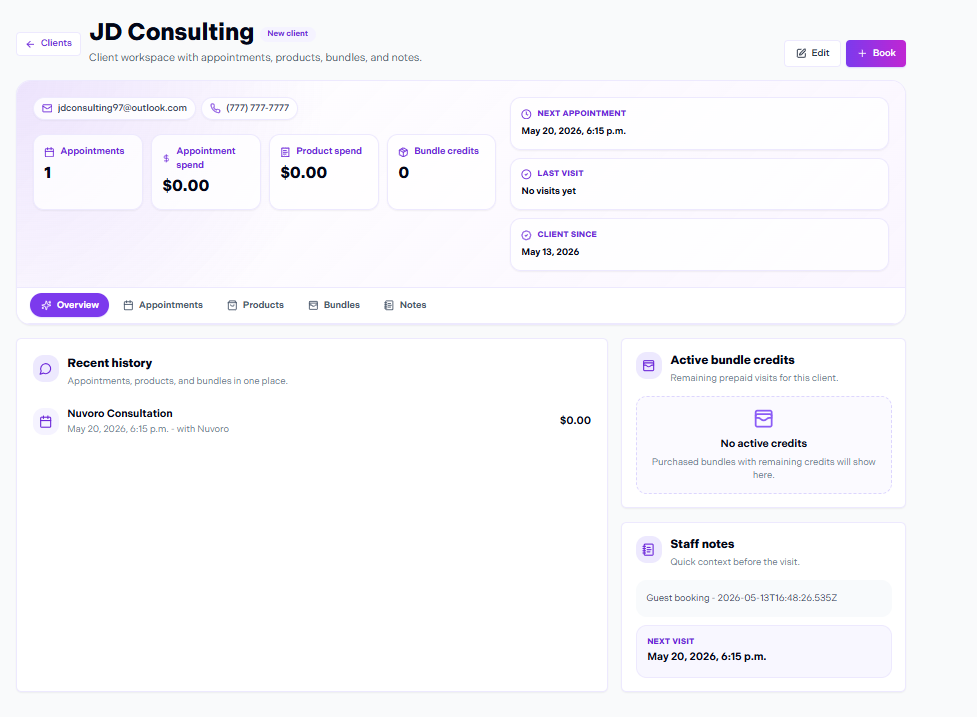
Individual client profile page
In this article
Profile Overview
The client workspace is the individual profile page you reach by clicking a client's name anywhere in Nuvoro — from the client list, from an appointment on the calendar, or from the actions menu. It's the single source of truth for everything related to that client.
Contact Information
The top section of the profile shows the client's contact details. Click Edit to update any field:
Name
First and last name as entered when the account was created.
Used for booking confirmations, reminders, and campaigns.
Phone
Used for SMS reminders if messaging is configured.
Date of birth
Optional. Stored for your reference.
Appointment History
The History tab shows a chronological list of every appointment this client has had — past and upcoming. Each entry shows the service, provider, date, time, and status (completed, cancelled, no-show, etc.).
Book from history
You can start a new booking for the same service directly from a past appointment entry — handy for repeat clients who always book the same service.
Notes
The Notes section is a private space for your team to log anything relevant to the client — preferences, allergies, service details, or follow-up reminders. Notes are visible to staff only and are never shared with the client.
Click + Add note
A text field opens. Type your note and save.
Notes are timestamped and attributed
Each note shows who wrote it and when. You can add multiple notes over time to build a full picture.
Bundles & Packages
If a client has purchased a service bundle (e.g. a 10-session package), the Bundles tab shows all active packages, how many sessions have been used, and how many remain. Sessions are deducted automatically at checkout.
Quick Actions
From the client profile you can take several actions without navigating away:
Book appointment
Start a new booking pre-filled with this client's details.
Send email
Send a one-off email directly to this client.
Send SMS
Send a text message if SMS is enabled in your messaging settings.
Delete client
Permanently remove the client and all associated data.