Service Bundles
Sell multi-session packages to clients. Create a bundle once, then track usage automatically at every checkout.
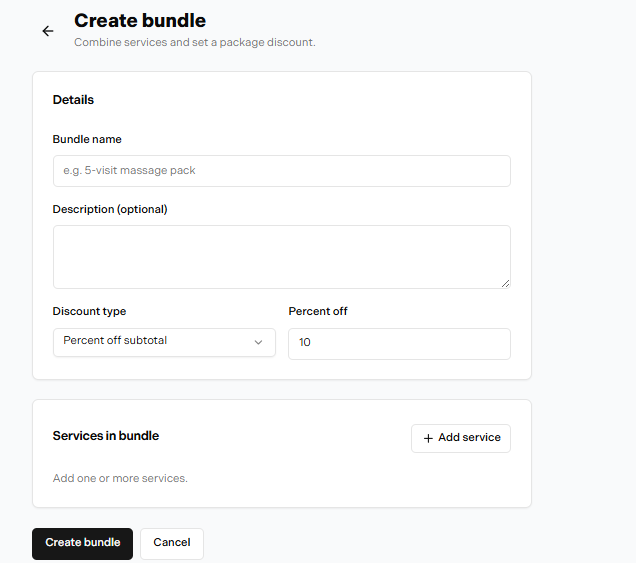
Creating a service bundle
In this article
What Is a Service Bundle?
A service bundle is a pre-paid package of multiple sessions for a specific service. For example, a "10-class yoga package" or "5-session massage bundle." A client purchases the bundle once and then redeems sessions one at a time at each visit. Nuvoro tracks the remaining sessions automatically.
Creating a Bundle
Go to Services → Bundles
Find the Bundles tab within the Services section of your dashboard.
Click + Create Bundle
The bundle form opens.
Name the bundle and select the service it applies to
A bundle is tied to one specific service. The service must already exist before creating a bundle for it.
Set the number of sessions and the bundle price
Example: 10 sessions at $450 (instead of 10 × $50 = $500 individually).
Set an expiry (optional)
You can set a number of days after purchase that the bundle expires. Leave blank for no expiry.
Save the bundle
The bundle is now available to assign to clients at checkout.
Viewing & Managing Bundles
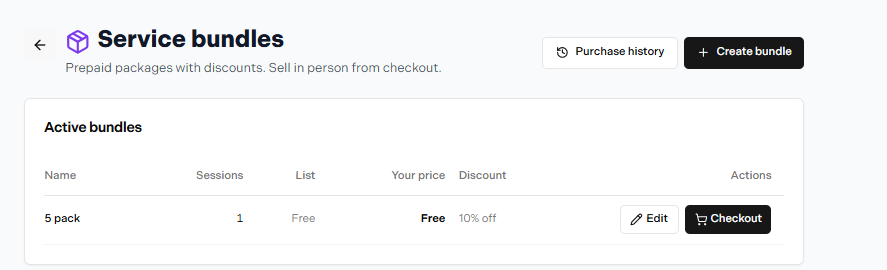
The bundle list view
The Bundles list shows all bundles you've created along with their associated service, session count, and price. Click any bundle to edit it or change its status.
Client bundle usage
To see which clients hold a specific bundle and how many sessions they have remaining, open the bundle and view the Client Usage tab. You can also see this from the individual client's profile page under Bundles.
How Sessions Are Tracked
When you check out an appointment for a client who holds an active bundle for that service, Nuvoro automatically offers to redeem a session from the bundle rather than charge them separately. The session count decrements by one and the bundle balance is updated instantly.
Manual bundle assignment
Bundles are assigned to individual clients — they don't appear on the booking page for clients to self-purchase. To give a client a bundle, sell it to them at checkout and then assign it to their profile from the checkout screen.