Message Templates
Customise the automated emails your clients receive — booking confirmations, reminders, cancellations, and reschedules — so every message sounds like you.
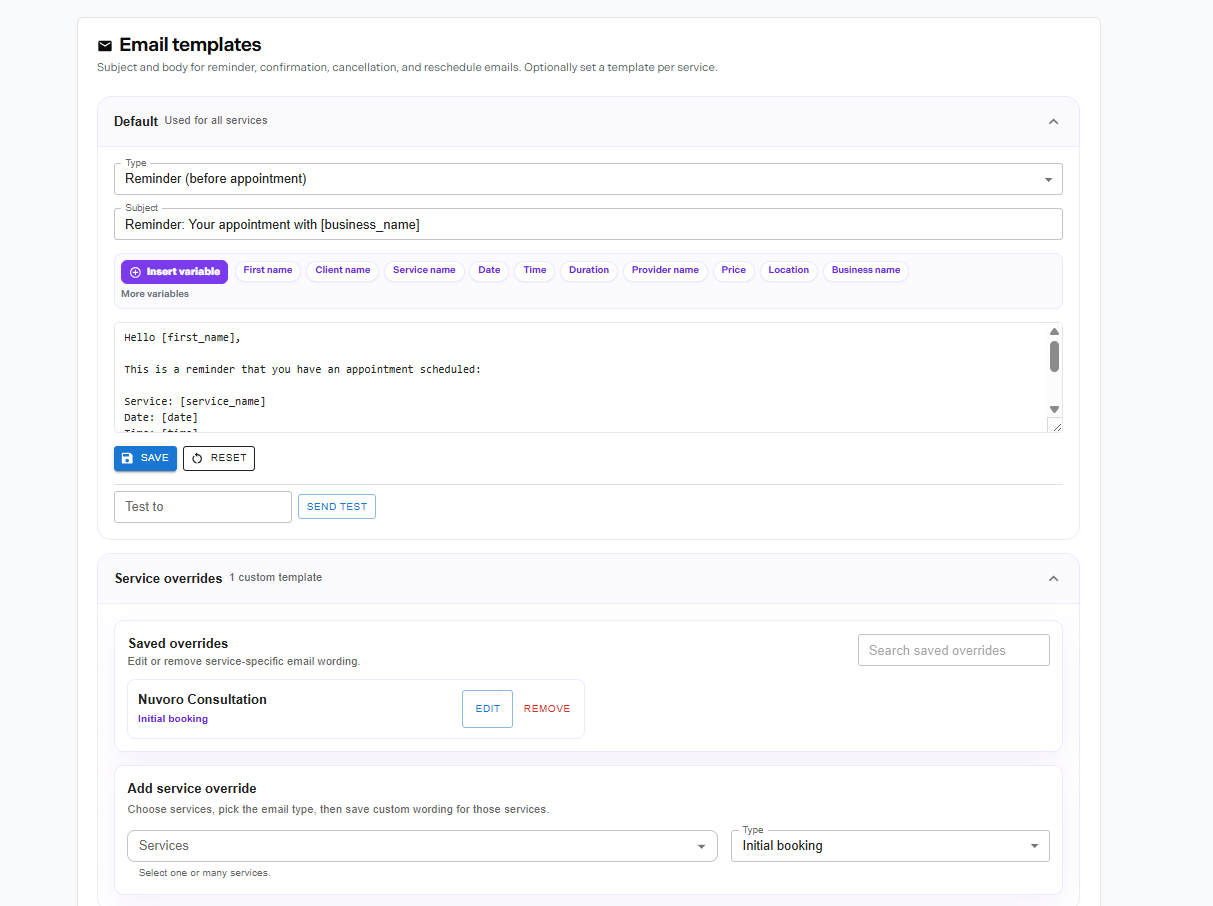
Settings → Message Templates
In this article
Template Types
Nuvoro has four automated message types. Each one is sent to clients automatically when the relevant action occurs:
| Template | When it's sent |
|---|---|
| Booking confirmation | Immediately after a new appointment is created — by client or staff. |
| Appointment reminder | Automatically before the appointment — timing set in Booking Rules. |
| Cancellation | When an appointment is cancelled by staff or the client (if allowed). |
| Reschedule | When an appointment is moved to a new date or time. |
Editing a Template
Go to Settings → Message Templates
All four templates are listed here.
Select the template you want to edit
Click the template name or the Edit button to open the editor.
Edit the subject line and body
Both fields are editable. Use the formatting tools to add bold, links, or bullet points.
Save the template
Your changes apply to all future automated messages of that type immediately.
Using Dynamic Variables
Dynamic variables pull in appointment-specific information automatically. Insert them into your template using the variable picker or by typing the placeholder directly:
| Variable | What it inserts |
|---|---|
| {{client_name}} | The client's first name. |
| {{service_name}} | The name of the booked service. |
| {{appointment_date}} | The date of the appointment. |
| {{appointment_time}} | The start time of the appointment. |
| {{staff_name}} | The assigned staff member's name. |
| {{business_name}} | Your organisation name from Settings. |
Personalise every message
Starting an email with "Hi {{client_name}}" automatically fills in each client's name. This small touch makes automated messages feel personal and boosts read rates.
Previewing & Saving
Before saving, use the Preview button to see how the email will look with sample data filled in. This is the best way to catch formatting issues or missing variables before they go out to clients.
Default templates are always available
If you ever want to revert to Nuvoro's original message, click Restore default on any template. This replaces your custom version with the original — you'll need to re-customise it if you want to change it again.