Integrations
Connect Nuvoro to the tools your business already uses — calendar sync, Google, and more.
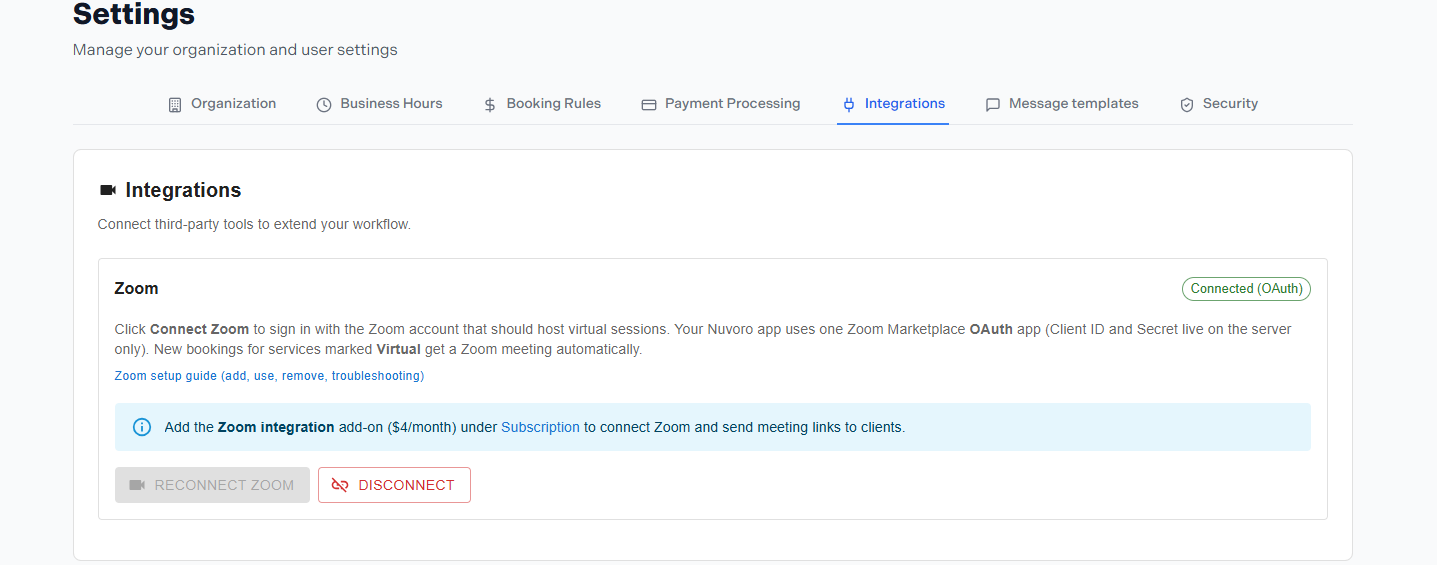
Settings → Integrations
In this article
Available Integrations
The Integrations page shows all third-party connections available for your Nuvoro account. Each integration card shows whether it's connected or not, and a button to connect or manage it.
| Integration | What it does |
|---|---|
| Google Calendar | Syncs your Nuvoro appointments to a Google Calendar so they appear alongside personal events. |
| Google My Business | Connects your booking page to your Google Business Profile so clients can book from Google Search and Maps. |
Google Calendar Sync
When connected, appointments booked in Nuvoro automatically appear in your linked Google Calendar. This is per staff member — each provider connects their own Google account from their individual profile or from this Integrations page.
Click Connect next to Google Calendar
A Google sign-in window opens.
Sign in with the Google account to sync to
Choose the Google account whose calendar should receive Nuvoro appointments.
Grant calendar access
Nuvoro needs permission to create and update calendar events. Approve the permissions prompt.
Sync is active
New and updated appointments will appear in Google Calendar automatically. Existing appointments sync within a few minutes.
One-way sync
The sync is one-way: Nuvoro → Google Calendar. Events created directly in Google Calendar do not block your Nuvoro availability. Use Nuvoro as the source of truth for scheduling.
Disconnecting an Integration
To remove a connected integration, click Disconnect on the integration card. This stops all future syncing. Events already created in the external service (e.g. Google Calendar) are not deleted — they remain where they are.