Payment Processing
Connect a payment processor so you can collect deposits, no-show fees, and payments at checkout. Nuvoro supports Stripe and Square — one at a time.
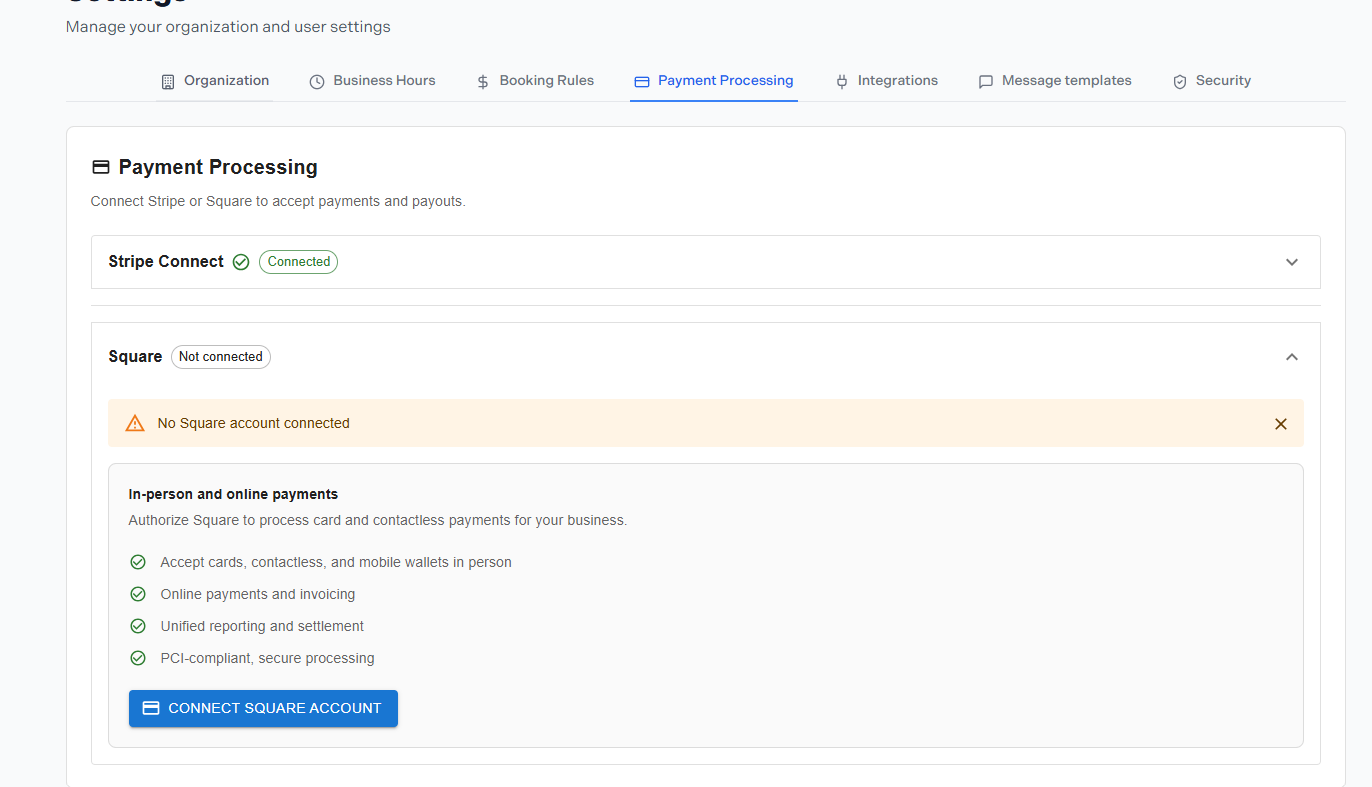
Settings → Payment Processing
In this article
Stripe vs Square — Choosing One
You can connect either Stripe or Square to your Nuvoro account, but not both at the same time. Choose the one that best fits your business:
| Feature | Stripe | Square |
|---|---|---|
| Online card payments | ✓ | ✓ |
| In-person card reader | Stripe Terminal | Square Reader |
| Existing account required | stripe.com | squareup.com |
Only one processor at a time
You cannot have both Stripe and Square connected simultaneously. If you connect a second processor, the first will be disconnected. Choose the one your business already uses, or the one best suited to your workflow.
Connecting Stripe
Go to Settings → Payment Processing
Find the Stripe section on the page.
Click Connect with Stripe
You'll be redirected to Stripe to log in or create an account.
Authorise Nuvoro in your Stripe account
Follow the Stripe prompts to grant access. You'll be redirected back to Nuvoro when complete.
Confirm the connection is active
The Payment Processing page will show your Stripe account as connected and active.
Connecting Square
Go to Settings → Payment Processing
Find the Square section on the page.
Click Connect with Square
You'll be redirected to Square to log in or create an account.
Authorise Nuvoro in your Square account
Select the Square location to connect, then confirm. You'll be redirected back to Nuvoro.
Switching or Disconnecting
To switch processors or remove your current connection, click Disconnect next to the active processor. Once disconnected, clients can no longer pay online and deposits/no-show fees cannot be charged until a new processor is connected.
Existing transactions are unaffected
Disconnecting a processor does not refund or cancel past payments. All historical transactions remain accessible in your Stripe or Square dashboard directly.